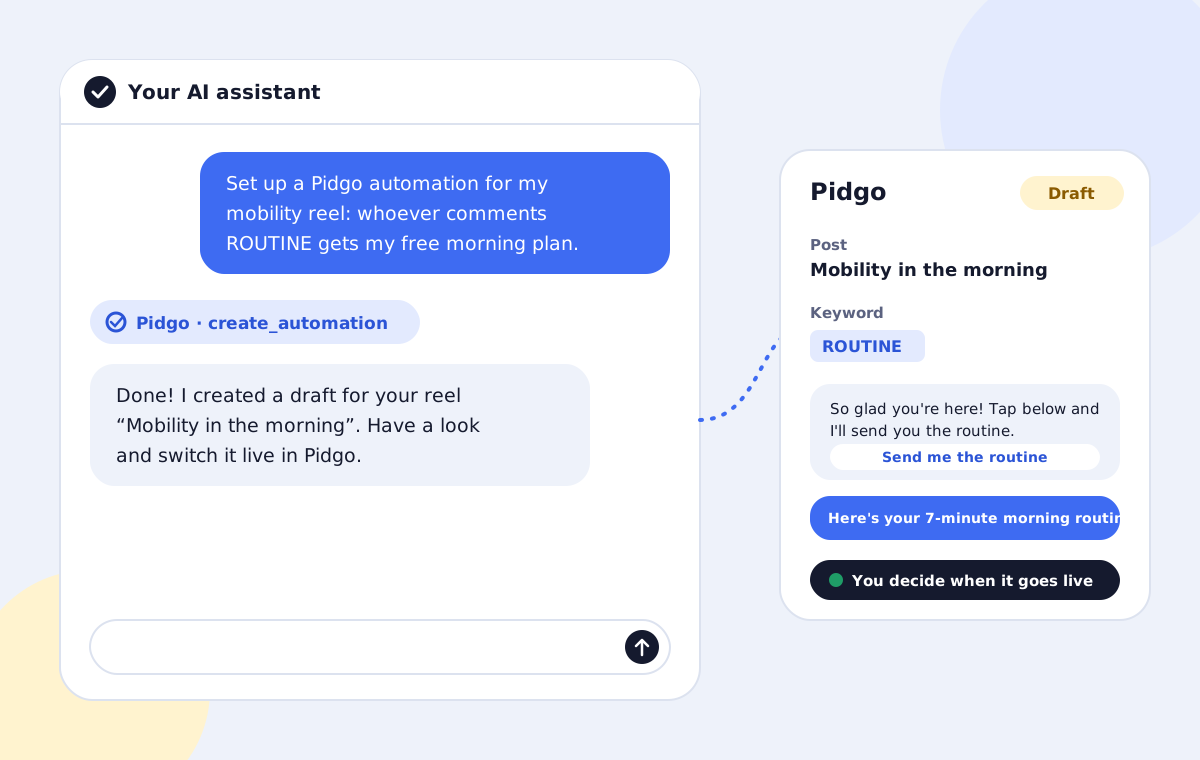
You can now set up Instagram comment-to-DM automations by talking to an AI assistant. Tell Claude "whoever comments GUIDE under my latest reel gets my free guide", and it builds the automation in Pidgo for you: the keyword, the public reply, the opening DM, the link and the reminder. You check the draft and switch it live with one tap.
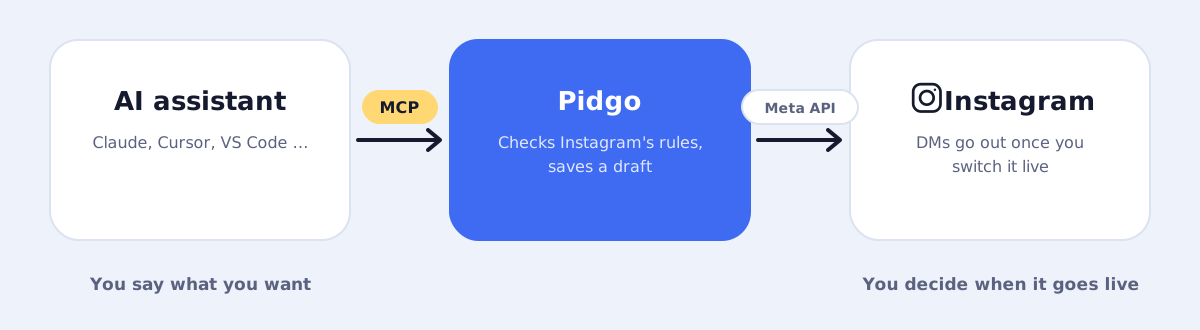
This works through MCP, the Model Context Protocol, an open standard that lets AI assistants use other apps safely. This guide shows how to connect your assistant to Pidgo, what it can and can't do, and how to get good results from the first try.
Why build automations with AI at all
Setting up a good comment-to-DM flow isn't hard, but it takes a few decisions: which post, which keywords, what the opening message says, how the button reads, whether to ask for a follow or an email first, when to send a reminder. Most creators know exactly what they want and still spend ten minutes clicking through forms and rewriting messages.
An AI assistant shortens that to a sentence. More importantly, it's good at the part people find hardest: writing short, friendly messages that sound like you, in your language, within Instagram's character limits.
- Faster: one message instead of a form with four steps.
- Better copy: the assistant drafts the DMs and button texts, and you can ask for a warmer or shorter version.
- Batch work: "set up the same thing for my last three reels" is one request, not three sessions.
- Agencies: manage several accounts by just describing what each client needs.
What you need
- A Pidgo account with your Instagram professional account connected.
- An AI assistant that supports MCP, for example Claude (claude.ai, Claude Desktop or Claude Code), ChatGPT, Cursor, VS Code with GitHub Copilot or Gemini CLI. See which AI assistants support MCP.
That's it. Most assistants sign in to Pidgo directly; only a few need an access key, which you create in Pidgo under Settings → MCP connection.
Connect Claude to Pidgo in three steps
- In claude.ai or Claude Desktop, open Settings → Connectors, choose Add custom connector and enter
https://pidgo.app/api/mcp. - Click Connect, sign in to Pidgo and pick the Instagram account Claude should work in.
- Ask Claude something like "Which of my Instagram posts got the most comments?" If it answers with your posts, you're connected.
In Claude Code, add Pidgo with this command, then run /mcp and choose Authenticate to sign in:
claude mcp add --transport http pidgo https://pidgo.app/api/mcp
The server address is the same for ChatGPT, Cursor, VS Code and every other assistant. The MCP clients guide shows where to add it in each one.
What the assistant can do in Pidgo
Pidgo gives your assistant a small, focused set of tools:
- See your posts: your latest posts and reels with their comment counts, so it can pick the right one.
- See your automations: what already runs, which keywords are taken and how each one performs.
- Create automations: always as a draft, with keyword, public reply, opening DM, follow gate, email question, link and reminder.
- Edit automations: change texts, keywords or the link of an existing automation.
- Pause automations: stop one that's live, for example when an offer ends.
What it deliberately can't do: switch an automation live. Going live means real DMs go out to real people, so that last tap stays with you in Pidgo.
A full example
Here's a typical request:
Set up a Pidgo automation for my reel about morning mobility. Whoever comments ROUTINE or MOBILITY should get my free 7-minute routine at pidgo.app/routine. Reply publicly so others see it works, ask them to follow me first, and remind them after 6 hours if they didn't open the link. Write everything in a warm, short tone.
The assistant looks up your recent posts, finds the mobility reel, checks that neither keyword is already used on that post and creates a draft with:
- a public reply like "Sent it to your DMs!",
- an opening DM with a "Send me the routine" button,
- a follow gate message,
- the link message with a "Get the routine" button,
- a reminder after six hours.
It then gives you a link to the draft in Pidgo. Read through it, change anything you like, and switch it live.
Tips for good results
- Name the post clearly. "My latest reel" or "the reel about squats" works. If you have several similar posts, say which.
- Give the link and the promise. What do people get, and where does it live?
- Say how it should sound. "Casual, like I text a friend" or "professional, no emojis" makes a big difference.
- Write in your audience's language. The assistant writes the DMs in whatever language you ask for.
- Iterate in the chat. "Make the opening message shorter" or "use GUIDE instead of PLAN" updates the same automation.
For a collection of ready-to-use requests, see 10 AI prompts for Instagram automations.
Is it safe?
A connection, whether you signed in or used an access key, only works for your Pidgo account and the one Instagram account you picked. It can't read your Instagram password, your private DMs or anything outside Pidgo. Pidgo stores only fingerprints of the keys it hands out, not the keys themselves.
Every automation the assistant creates still goes through the same checks as one you build by hand: Instagram's character limits, valid links, no duplicate keywords on the same post, and Pidgo's sending limits that keep your account within Instagram's rules. And nothing goes live without you.
To end a connection, disconnect the assistant under Settings → MCP connection. Connections and keys nobody uses expire after 90 days.
Questions people ask
Do I need to know how to code?
No. You need to paste one line or one small snippet into your assistant's settings once. After that you just talk to it.
Does it work with ChatGPT?
Yes. Add Pidgo as a connector in ChatGPT and sign in to Pidgo, no key needed. The same works in claude.ai. See which AI assistants support MCP for the steps.
Can the AI send DMs on its own?
No. The assistant can only prepare automations as drafts and pause live ones. DMs only go out after you switch an automation live in Pidgo, and only to people who comment on your posts.
Does Pidgo use my data to train AI?
No. Your assistant only sees what it asks Pidgo for during your conversation, such as your post captions and automation texts. How your assistant's provider handles conversations depends on their own settings and terms.
What does it cost?
The MCP connection is included in Pidgo at no extra cost. Your AI assistant may have its own subscription.